


Introduction
The Model Context Protocol (MCP) is an open standard that lets AI assistants and coding tools call out to external services through a common interface. The GrapheneDB MCP Server implements this standard so that AI clients like Claude, Codex, and Cursor can act on your GrapheneDB account directly from a chat or coding session — no context switching to the Console required.
The GrapheneDB MCP Server exposes two kinds of tools:
- Account and deployment tools — list your Organizations and Environments, inspect databases, plans, and regions, and pull metrics, logs, query logs, and activity logs. These work as soon as you sign in.
- Database query tools — run Cypher queries against one of your databases. Because GrapheneDB doesn’t store your database credentials, this requires linking your MCP session to an open Console tab first (see Running Cypher queries).
Installing the GrapheneDB MCP Server
The GrapheneDB MCP Server is a remote server reachable over HTTP — there’s nothing to download or run locally. Point any MCP-compatible client at:
https://console.graphenedb.com/mcpThe first time a tool is called, your client will open a browser window so you can sign in with your GrapheneDB account (OAuth) — no API key or token to copy around.
Setup steps differ slightly by client:
Claude
Claude Desktop and claude.ai — go to Settings → Connectors → Add → Add custom connector, paste the URL above, and click Add. Claude will prompt you to sign in the first time you use one of the tools.
Claude Code — add it from the command line:
claude mcp add --transport http GDB https://console.graphenedb.com/mcpor add it directly to .mcp.json (project scope) or your global settings.json:
{
  "mcpServers": {
    "GDB": {
      "type": "http",
      "url": "https://console.graphenedb.com/mcp"
    }
  }
}
Codex
Add a table for the server in ~/.codex/config.toml (or .codex/config.toml for a single, trusted project):
[mcp_servers.graphenedb]
url = "https://console.graphenedb.com/mcp"
Then complete the OAuth sign-in with:
codex mcp login graphenedbCursor
Add the server to .cursor/mcp.json (project) or ~/.cursor/mcp.json (global, all projects):
{
  "mcpServers": {
    "GDB": {
      "url": "https://console.graphenedb.com/mcp"
    }
  }
}
Open Settings → MCP and confirm the GDB server is enabled — Cursor will trigger the OAuth sign-in the first time a tool is called.
Available tools
| Category | Tools |
|---|---|
| Organizations & Environments | listOrganizations, listEnvironments, getEnvironment |
| Databases | getDatabases, getDatabase, getDatabasesByEnvironment |
| Plans, regions & versions | getPlans, getRegions, getVersions |
| Monitoring | getDatabaseMetrics, getDatabaseMetricsNow, getDatabaseLogs, getDatabaseQueryLogs, searchDatabaseActivityLogs |
| Console linking | getConsoleDatabaseLink, listConsoleDatabaseLinks, claimConsoleSession |
| Querying | databaseCypherRunQuery |
The exact list of tools your client shows may grow over time as we add more capabilities to the server.
Running Cypher queries
databaseCypherRunQuery runs with the permissions of whichever database user you authenticate with — GrapheneDB never stores your database credentials, so this tool can’t run until you link your MCP session to a database:
-
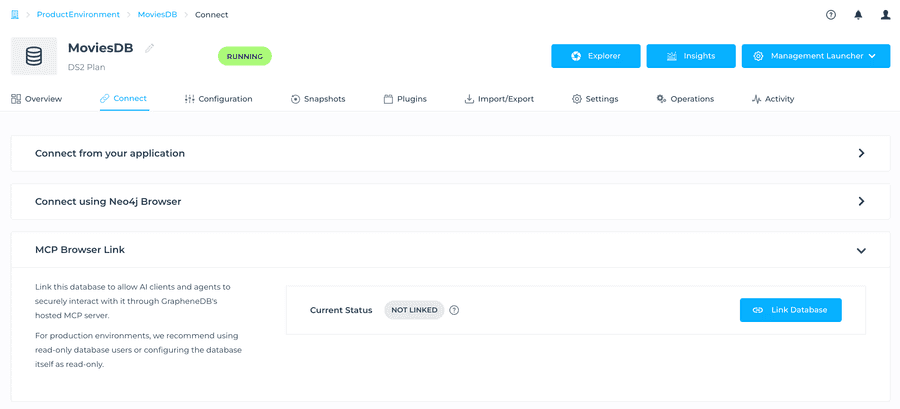
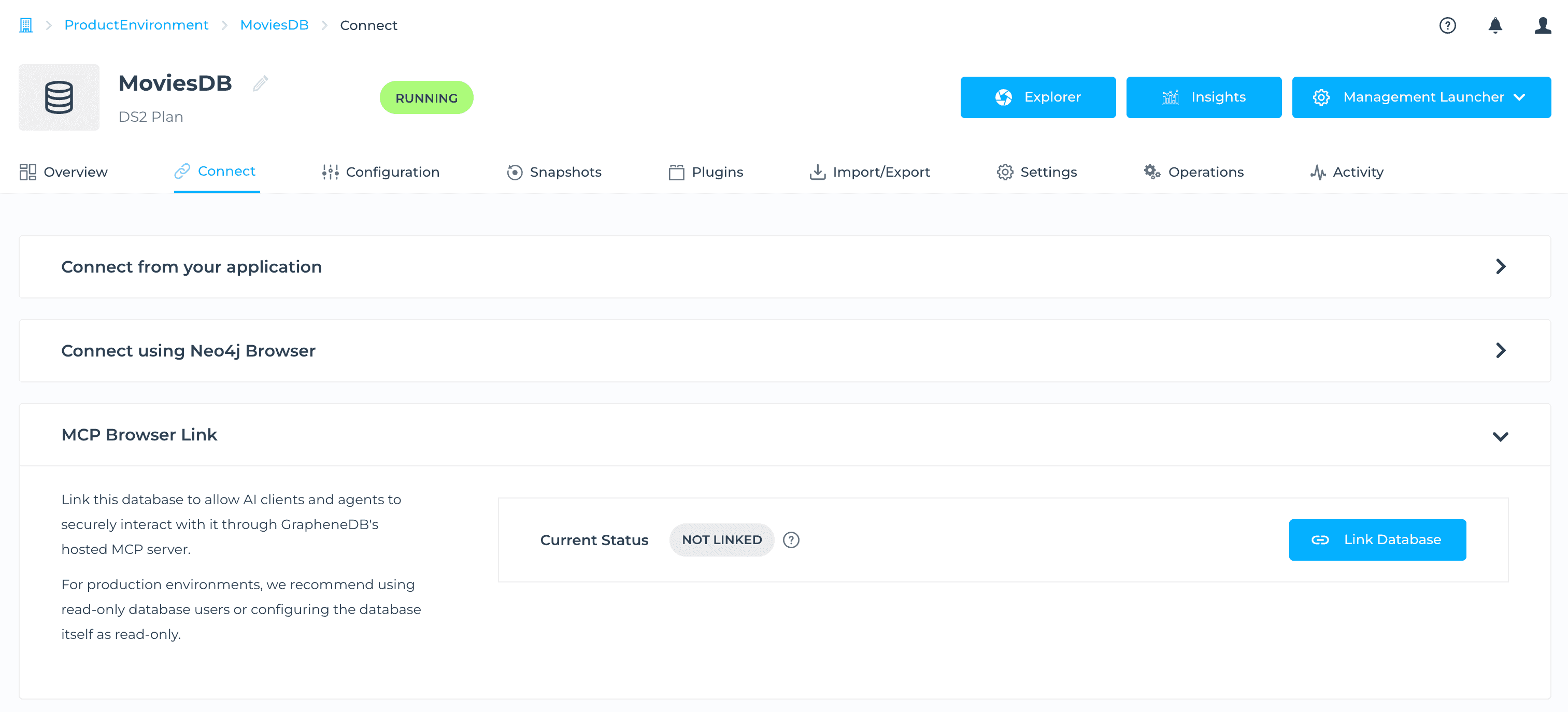
Open the Connect page for the database in the GrapheneDB Console and expand MCP Browser Link. Its status starts out Not linked.
-
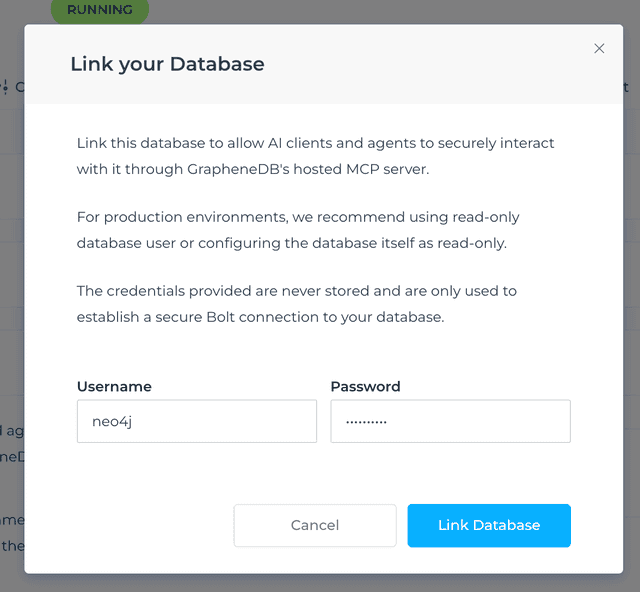
Click Link Database and enter the database credentials in the dialog that opens. These credentials are only used to establish the connection — GrapheneDB doesn’t store them.
-
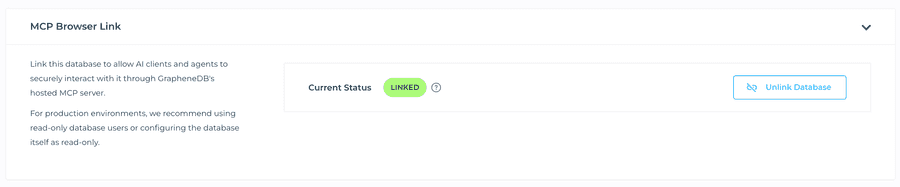
Click Link Database to confirm. The status switches to Linked, with an Unlink Database button to end the link at any time.
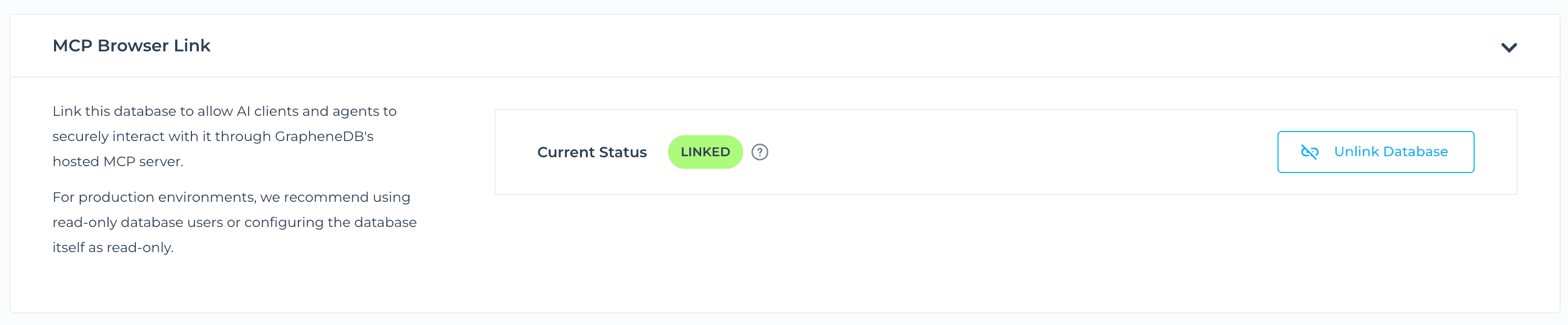
Once linked, ask your assistant to run a query and it will execute against that database through your open Console tab and return the results. Closing the tab, connecting to a different database, or clicking Unlink Database ends the link.
Example: diagnosing a degraded database
A typical way to use the GrapheneDB MCP Server is to describe a problem in plain language and let your assistant work through the diagnosis using the tools above. For example:
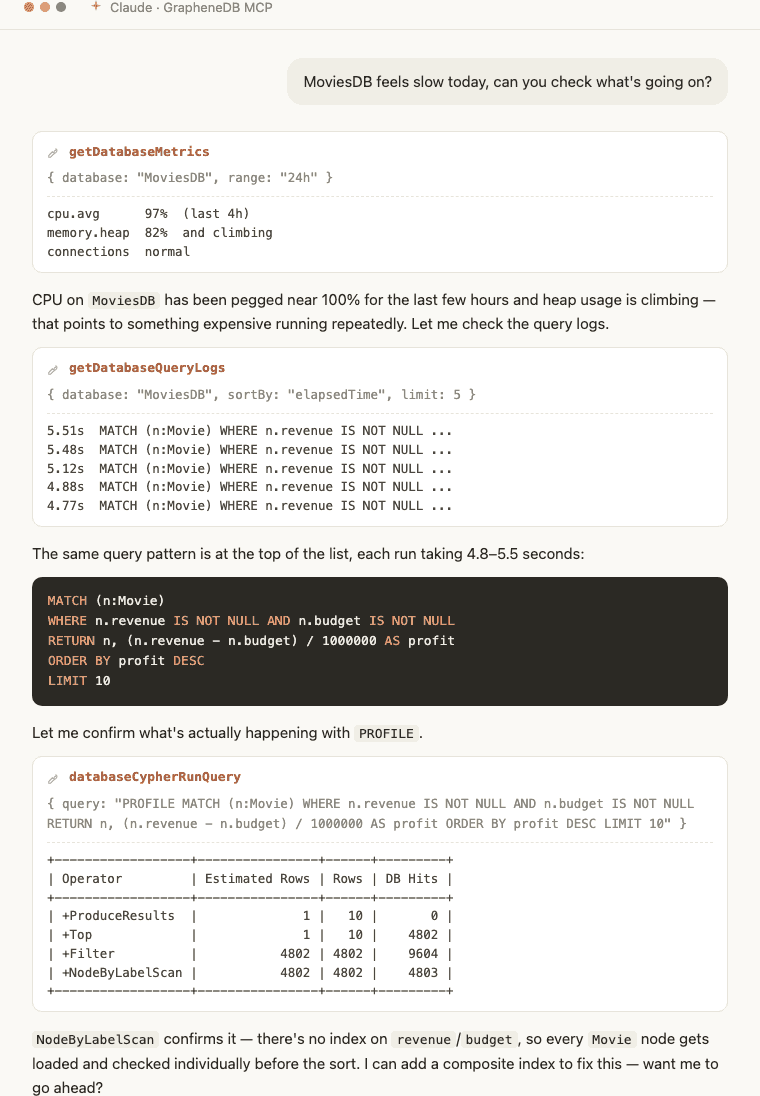
“MoviesDB feels slow today, can you check what’s going on?”
1. Check metrics to confirm a problem
The assistant calls getDatabaseMetrics (or getDatabaseMetricsNow for a live snapshot) for the database and finds CPU usage pegged near 100% with heap usage climbing over the last few hours — consistent with something more expensive than usual running against the database.
2. Find the slow query
Next it pulls getDatabaseQueryLogs sorted by elapsed time and finds the same query pattern repeated at the top of the list, each run taking several seconds:
MATCH (n:Movie)
WHERE n.revenue IS NOT NULL AND n.budget IS NOT NULL
RETURN n, (n.revenue - n.budget) / 1000000 AS profit
ORDER BY profit DESC
LIMIT 10
3. Confirm the cause with PROFILE
With the MCP session linked to the database (see Running Cypher queries), the assistant re-runs the query prefixed with PROFILE via databaseCypherRunQuery. The plan shows every Movie node being scanned before the filter is applied:
+------------------+----------------+------+---------+
| Operator         | Estimated Rows | Rows | DB Hits |
+------------------+----------------+------+---------+
| +ProduceResults  |              1 |   10 |       0 |
| +Top             |              1 |   10 |    4802 |
| +Filter          |           4802 | 4802 |    9604 |
| +NodeByLabelScan |           4802 | 4802 |    4803 |
+------------------+----------------+------+---------+
NodeByLabelScan confirms there’s no index backing the revenue/budget filter — every Movie node is loaded and checked individually.
Here’s what that exchange looks like in a Claude session:
4. Add the missing index
The assistant proposes a composite index covering both properties, and — once you confirm — runs it through the same databaseCypherRunQuery tool:
CREATE INDEX movie_revenue_budget FOR (n:Movie) ON (n.revenue, n.budget)Re-running the same PROFILE afterwards shows NodeByLabelScan replaced by an index seek, with the DB hit count dropping by an order of magnitude — the query now only touches Movie nodes that actually have both properties set, instead of the entire label.
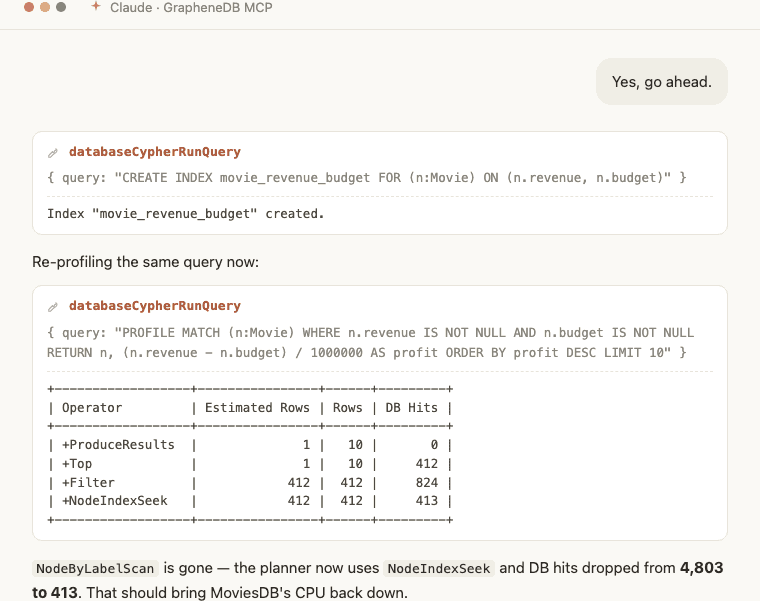
This whole loop — metrics, query logs, PROFILE, index — runs without leaving your chat or editor.
Security notes
- GrapheneDB never stores your database credentials — query execution is relayed through your own authenticated Console session.
- Account-level tools (Organizations, Environments, databases, metrics, logs) are scoped to whatever your GrapheneDB user has access to, same as in the Console.
- Revoke access at any time by removing the connector/server from your MCP client, or by signing out of the linked Console session.