


Private Endpoint Service
The Private Endpoint Service allows you to create a secure, private network connection between your AWS VPC and your GrapheneDB VPC (Environment) where your databases are hosted. This connection bypasses the public internet, providing lower latency, improved security, and predictable network performance.
ℹ️ Info
- Supported Neo4j version: 5.23+
- Only connections coming from the same region are supported
- 20-connection limit
Overview
When you enable the Private Endpoint Service, GrapheneDB creates a private connection entry point for your Environment. You can then link it to your AWS VPC using an AWS PrivateLink interface endpoint.
Key points:
- One Private Endpoint Service per Environment. All databases within that Environment can use the same service
- Private, one-way data flow. Data is transferred privately and unidirectionally from your VPC on AWS to the VPC on GrapheneDB where the databases are hosted, using the AWS PrivateLink feature
- Fixed hourly pricing. Pricing is per hour for the service, regardless of database activity
Enabling the Private Endpoint Service
⚠️ Warning
If you disable the Service all connections will get lost.
Enabling the Private Endpoint Service causes no downtime. Follow the steps below to create a secure, private connection between your AWS VPC and your GrapheneDB Environment. Each step walks you through the process from start to finish, making it easy to follow. Please note that the Private Link cannot be enabled if the Environment has no databases.
-
Enable Private Endpoint Service in GrapheneDB
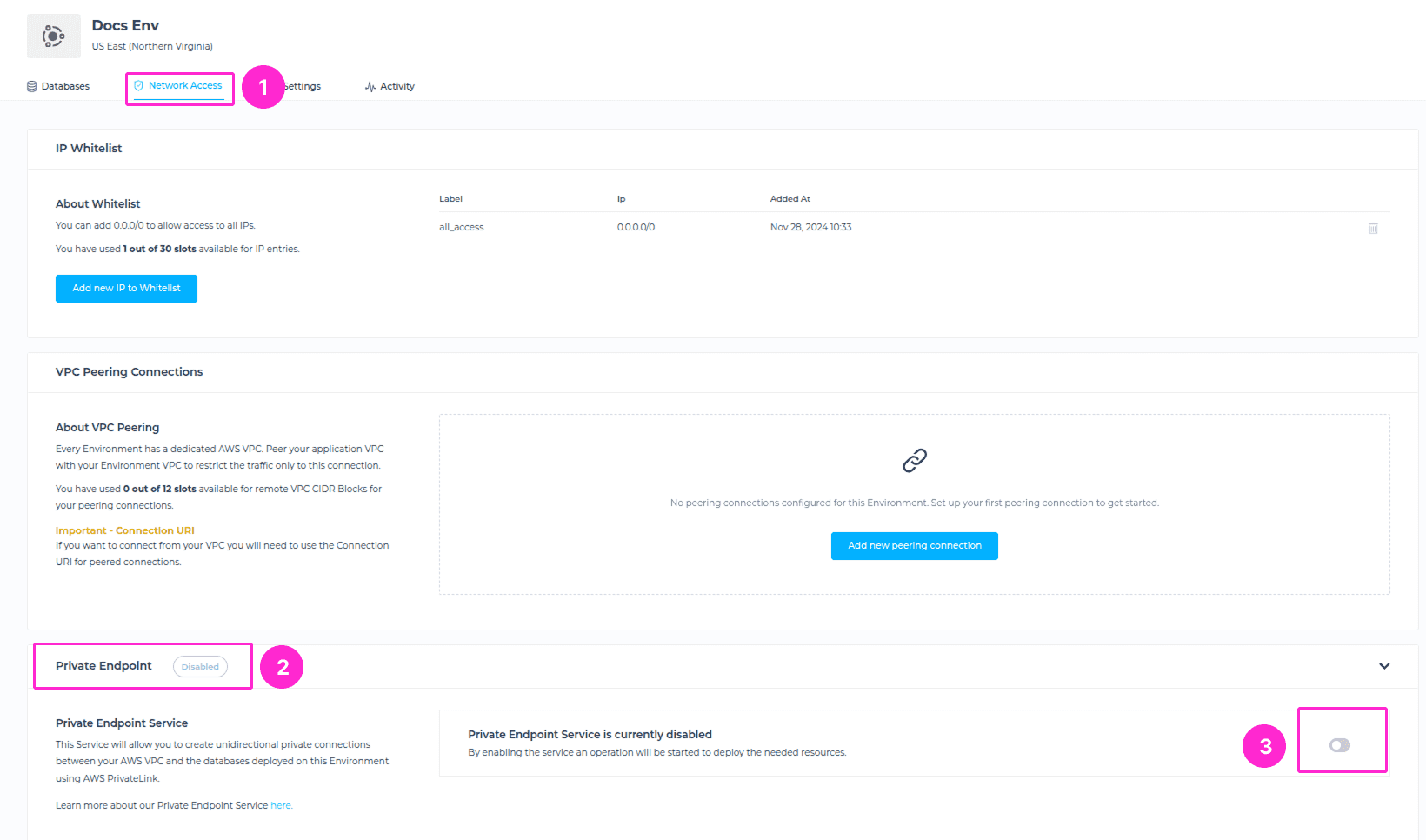
- Go to your GrapheneDB Environment Network Settings.
- Locate the Private Endpoint Service section.
- Click the Enable button.
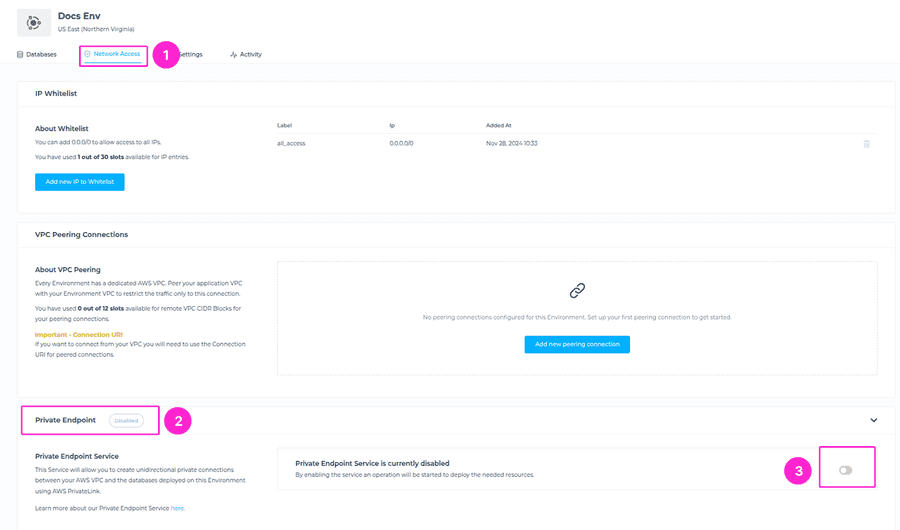
An Operation will start (with no downtime), and you can follow the progress in Operations view.
-
Copy the Private Endpoint information
Once the Private Endpoint Service is enabled, GrapheneDB will show you the following details:
-Service Name
-Service ID
-RegionCopy this information — you’ll need it when creating your AWS Private Endpoint Interface.

-
Create a Private Endpoint in AWS
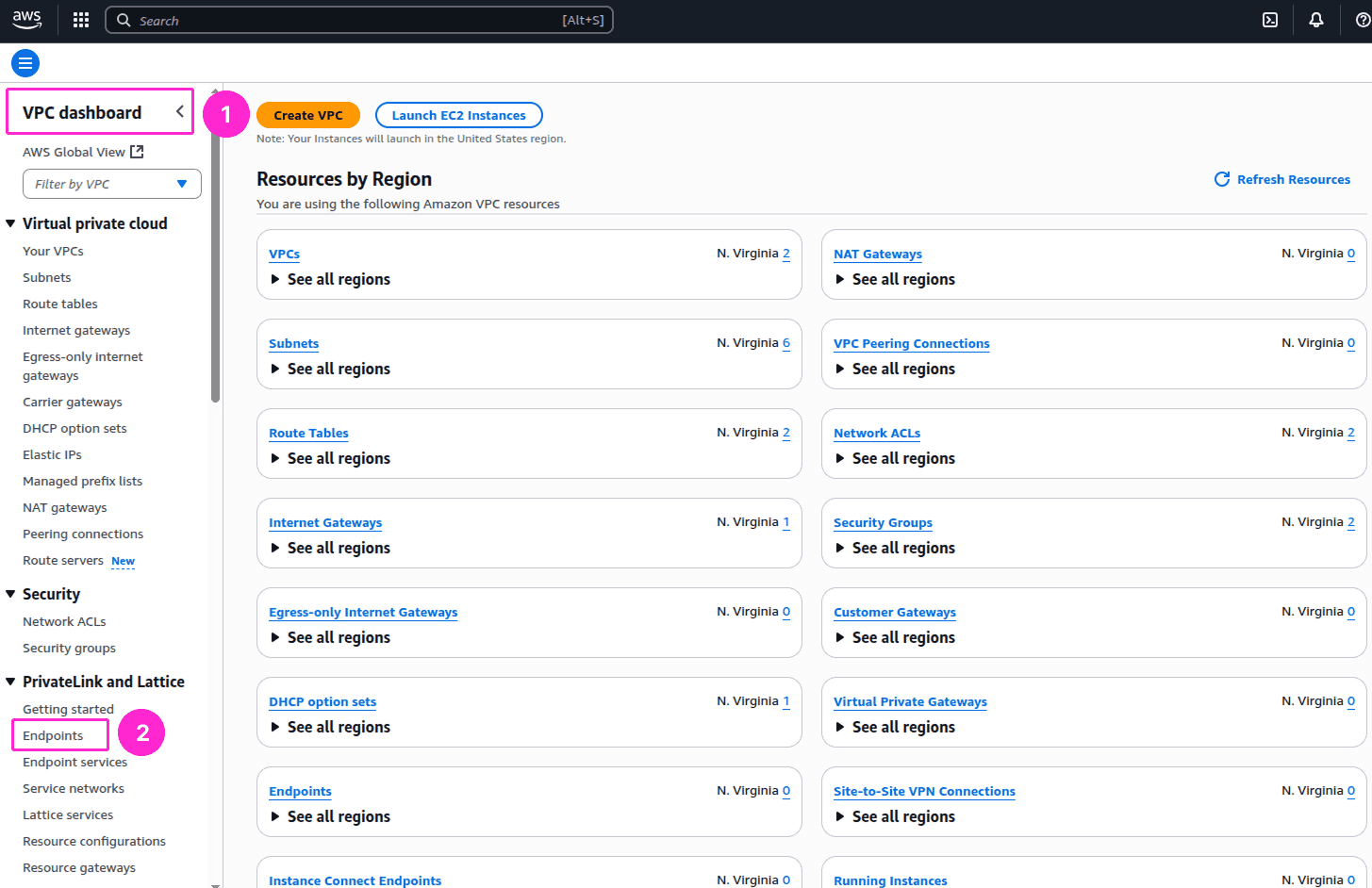
In the AWS Management Console, navigate to VPC > Endpoints.
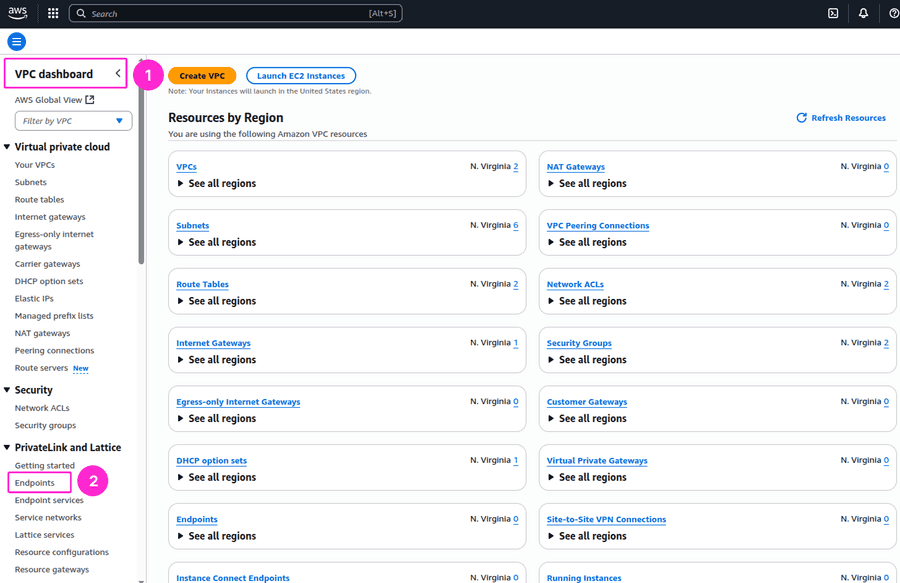
Next, click the Create Endpoint button at the upper right corner.

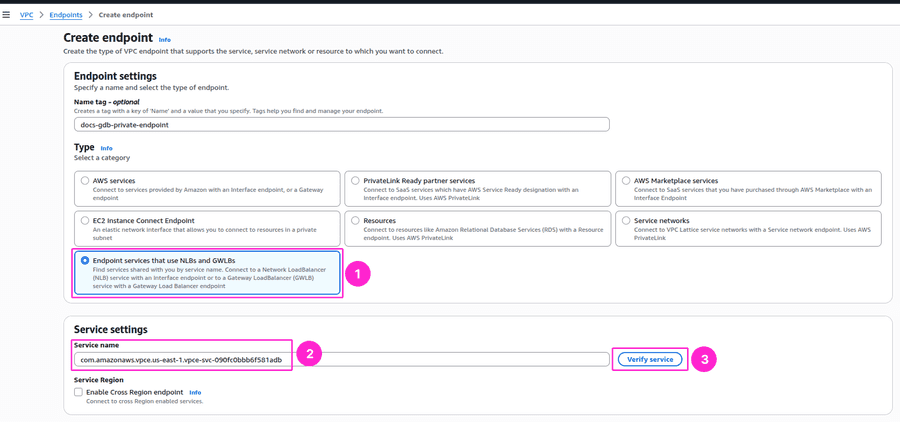
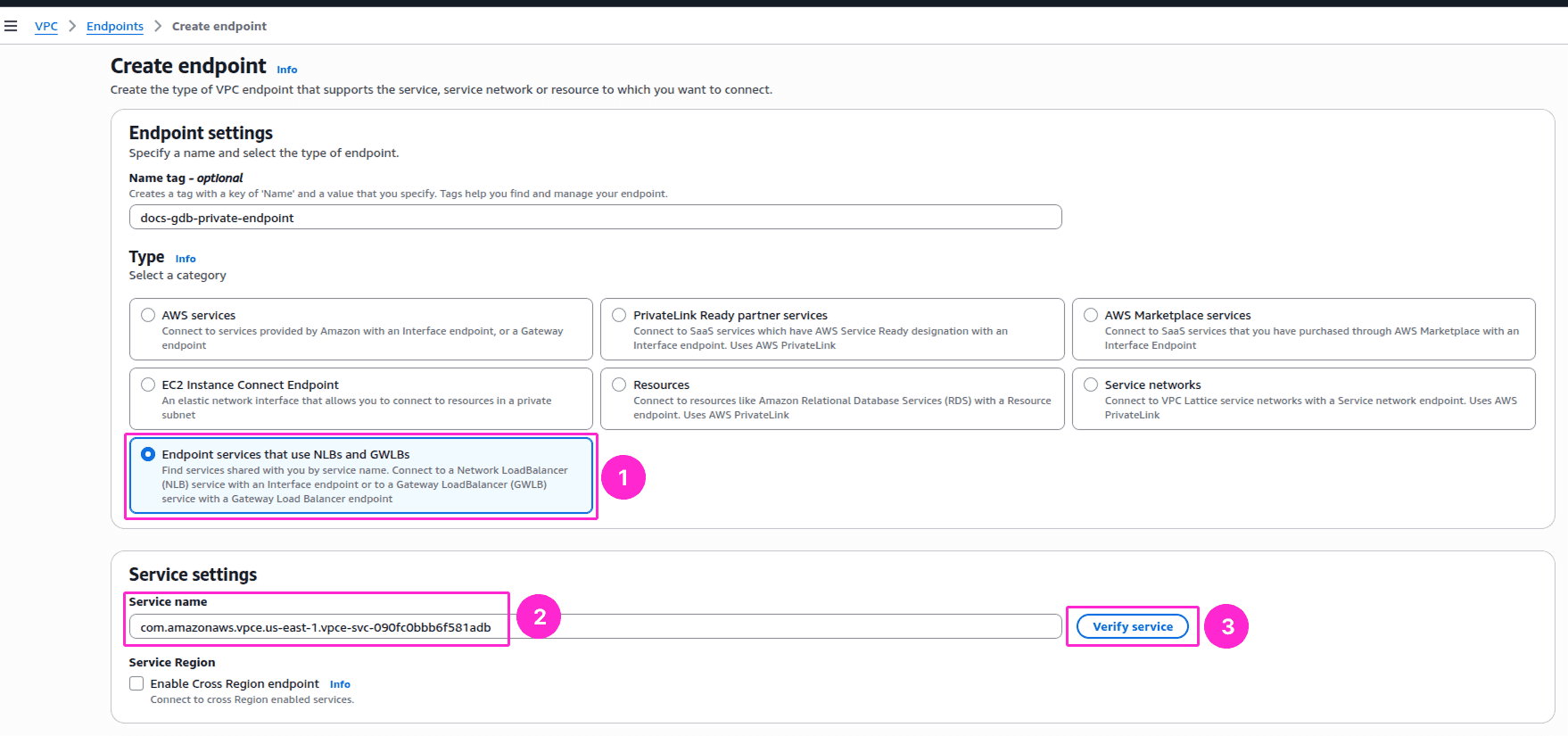
Select Endpoint services that use NLBs and GWLBs from the Type section, then paste the Service Name from GrapheneDB. Click Verify service. Service name verified should be the message displayed for you.
-
Add the Connection in GrapheneDB
After your AWS Private Endpoint is available, return to GrapheneDB and add the new connection:
- Go to your Environment > Network Settings tab.
- Under Private Endpoint Service, click the Add Connection button.
- Paste the VPC Endpoint ID from AWS.
- Save the connection.
Once approved, the connection becomes active, and your databases in that Environment can now be accessed privately from your AWS VPC.
-
Configure Security Groups in AWS
For each resource that needs to connect to your GDB databases using AWS PrivateLink, the resource’s security group must allow outbound traffic to the interface endpoint’s private IP address on the database ports.


Additionally, you must ensure that the security group for your interface endpoint allows resources to access it. To do this, add an inbound rule that uses the security group of your resources as the source and allows traffic on the database ports.
For more information about database ports, please read the next section.
Information about ports
It’s important to know that each database gets 5 ports reserved when enabling the Private Endpoint Service for the environment where it’s deployed, always starting with port 25786 for the first database. These 5 ports ensure there is room to grow in case replicas are also deployed.
If you don’t want to keep updating your AWS configuration every time you create a database or add a replica, you can define a sufficiently large port range. For example, 25786–26000 should provide plenty of flexibility (up to 43 deployed databases and their maximum number of replicas), allowing you to add and remove databases without having to change the configuration.
Pricing
The Private Endpoint Service costs $0.08 per hour.
Billing is done per Environment, not per database. All databases in the same Environment share one Private Endpoint Service.
For example, if you have three databases in the same Environment, you’ll still pay $0.08/hour total, not per database. In addition to the costs GrapheneDB charges you, AWS charges you for each VPC interface endpoint you create. You can check the AWS pricing here.
Connecting to your databases via Private Endpoint
Once your private connection is active you can connect to your database per steps below.
- Go to the database Connection tab in GrapheneDB.
- Copy the Private Endpoint connection URI.
- Use it in your Neo4j driver or application configuration instead of the URL for other connections.
In case you have any questions about this, or need any assistance, please open a Support Case, and we’ll be happy to help.